
Preferences
This chapter explains how to configure personalized preferences in the SessionPod client.
As shown below, click Settings in the left menu to open the settings page. You can customize the app based on your preferences.
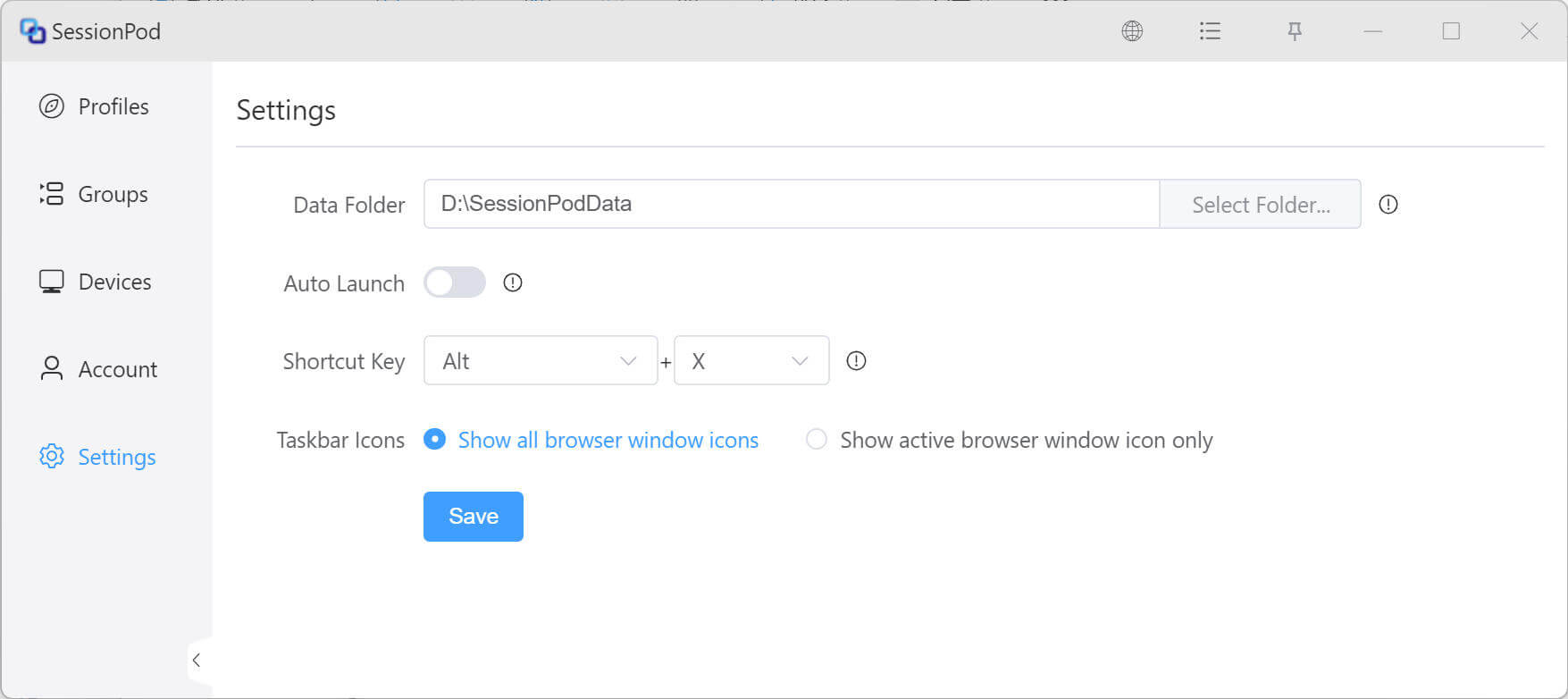
Data Folder
The Data folder stores browser-generated data, such as loaded images, videos, cookies, browsing history, and other browser data. If you create many browser profiles, this data may take up a large amount of disk space. We recommend choosing a disk with plenty of free space as the data directory. A removable drive is not recommended.
Auto Launch
When enabled, SessionPod starts automatically after your computer boots.
Shortcut Key
Use a keyboard shortcut to show or hide the SessionPod app window. As shown above, when you press Alt and X, the SessionPod window is hidden. Press Alt and X again to show it.
Taskbar icons
This feature is only available on Windows.
- Show all browser window icons: The taskbar shows icons for all launched browser windows.
- Show active browser window icon only: Only the browser window currently in use, meaning the window displayed on the screen, shows an icon in the taskbar. Taskbar icons for other open browsers are automatically hidden.