
Browser Data Sync
Almost all modern browsers provide data sync, allowing users to sync bookmarks, history, passwords, and other browsing data across devices.
In most cases, these features require users to sign in to the browser's account system, such as a Google Account or Firefox Account, and then enable data sync in the browser settings.
Brave browser data sync
This section introduces Brave browser data sync. Unlike most browsers that require an email registration and a cloud account login, such as a Google Account or Microsoft account, Brave does not use a user account system.
No account binding: You do not need to enter an email address, phone number, or password.
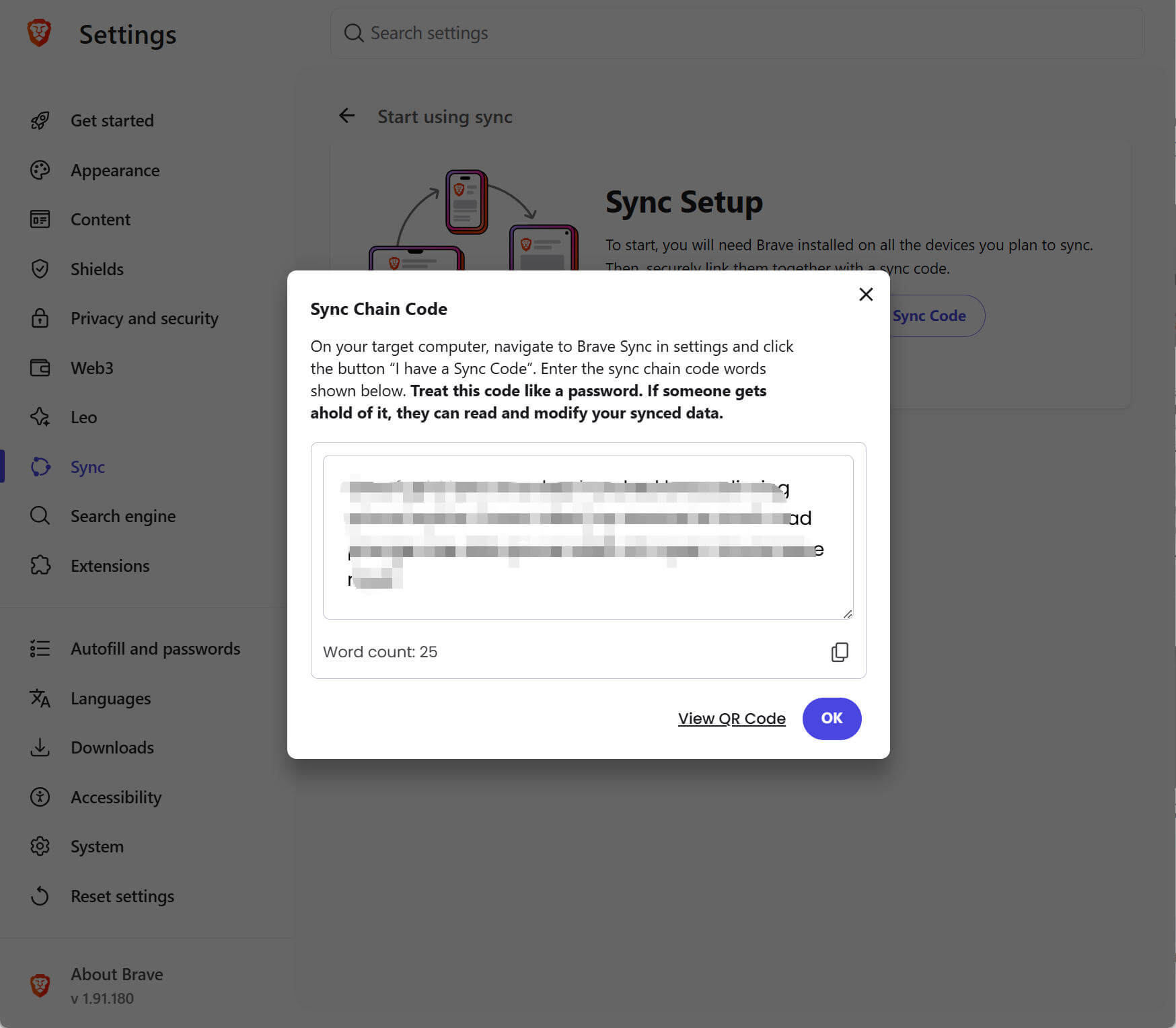
Sync chain: Brave uses a mechanism called a "sync chain." When you need to sync data, the first device generates a "sync chain code" made up of 25 random words. On mobile devices, it is usually shown as a QR code.
Device pairing: Your other devices, such as a phone or another computer, can join the sync chain by scanning the QR code or manually entering the 25 words, then start syncing data.
Click the menu button in the upper-right corner of Brave, then choose Settings -> Sync to open the sync settings page, as shown below:
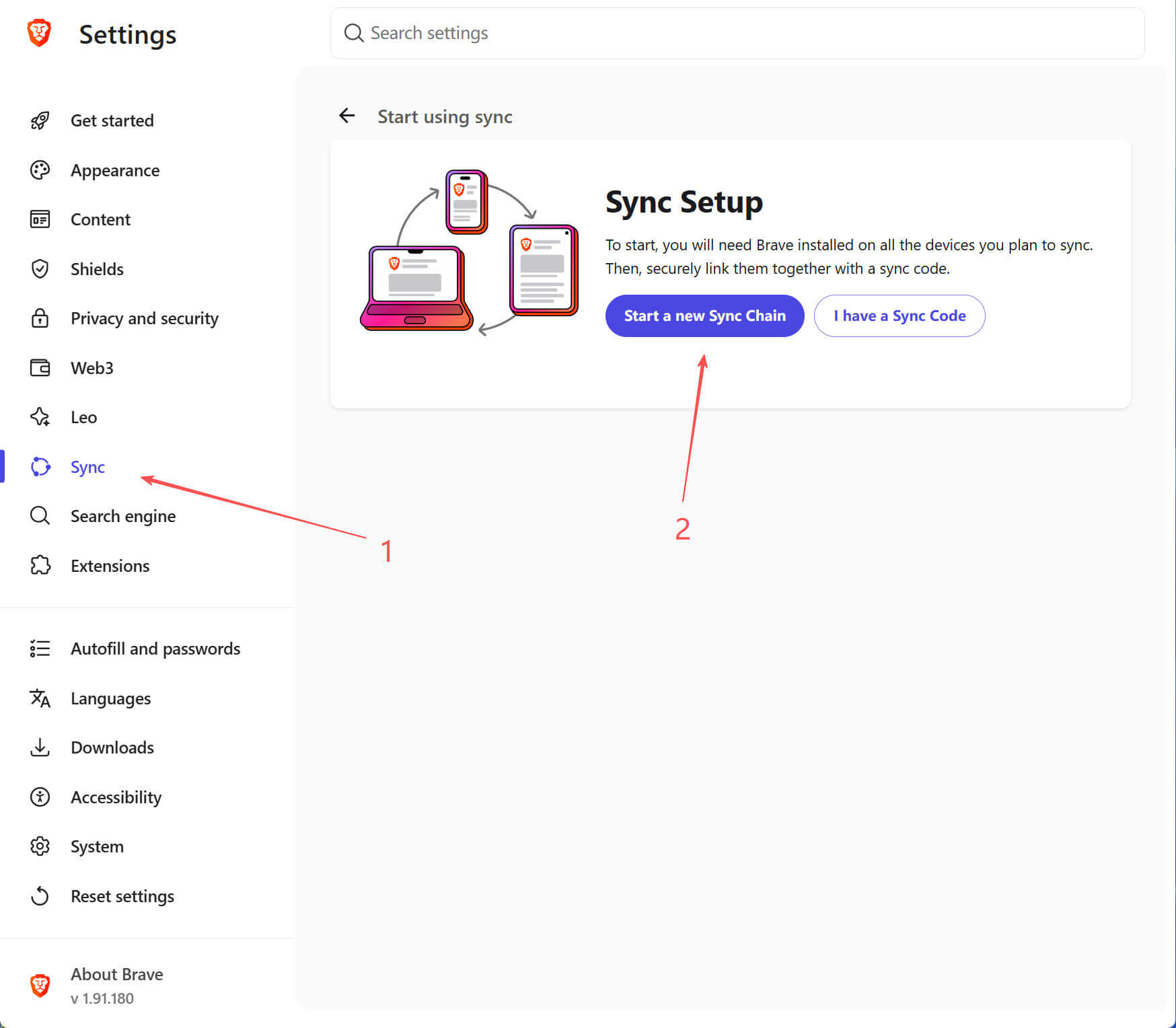
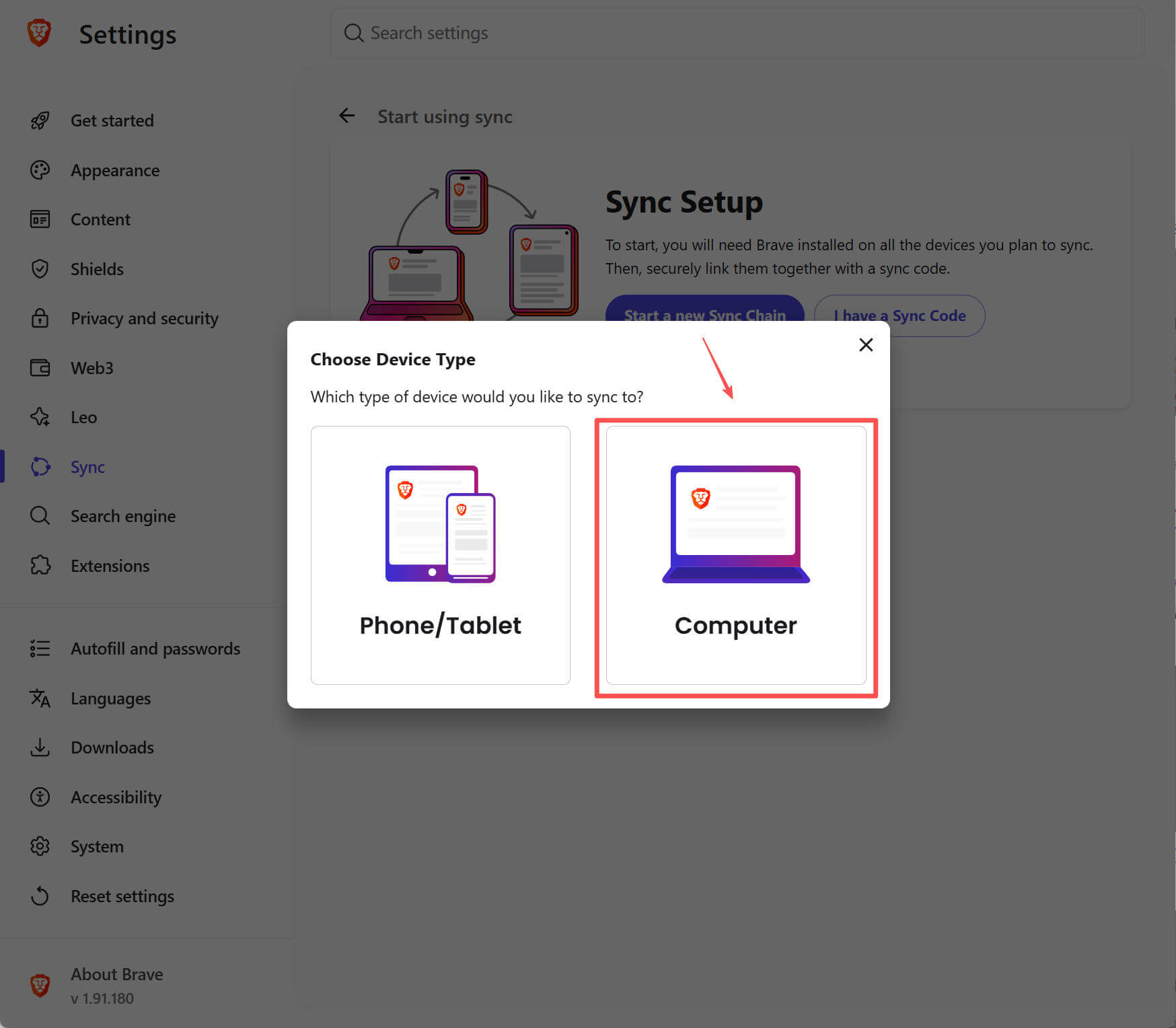
Click to create a new sync chain. In the dialog, choose Computer, as shown below:
View the generated sync chain code. You need to remember these 25 words, because you must enter them on other computers to join the sync chain, as shown below:
On other computers, enter the previously generated sync chain code to join the sync chain and sync data. The sync chain code is sensitive information. Do not disclose it, otherwise others may gain access to your data.
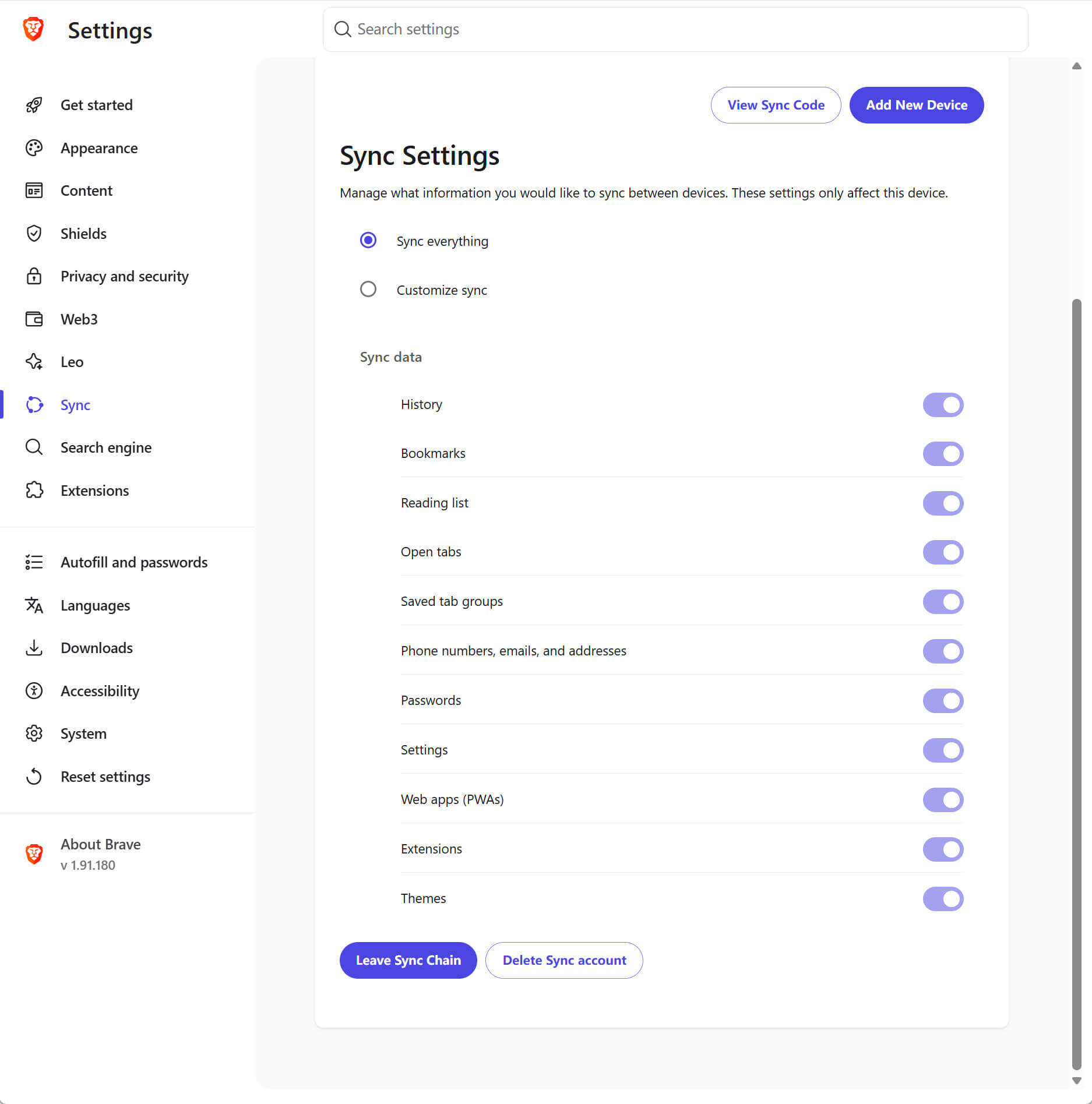
Set the data types you want to sync, as shown below:
Encrypted storage for sensitive information
To help users securely transfer sync chain codes between computers, SessionPod provides encrypted storage for sensitive information.
This feature uses an end-to-end encryption mechanism similar to Brave. When using it for the first time, you need to set a security password. The app derives a high-security key from this password to encrypt your information.
The security password you set is stored locally in encrypted form. The app does not upload this password to the cloud and does not store the plaintext password anywhere. Be sure to remember it. If the password is lost, we cannot help you recover the data.
When using SessionPod on another computer, you need to enter the security password the first time you view or use sensitive information, so that it can be decrypted and protected from unauthorized access.
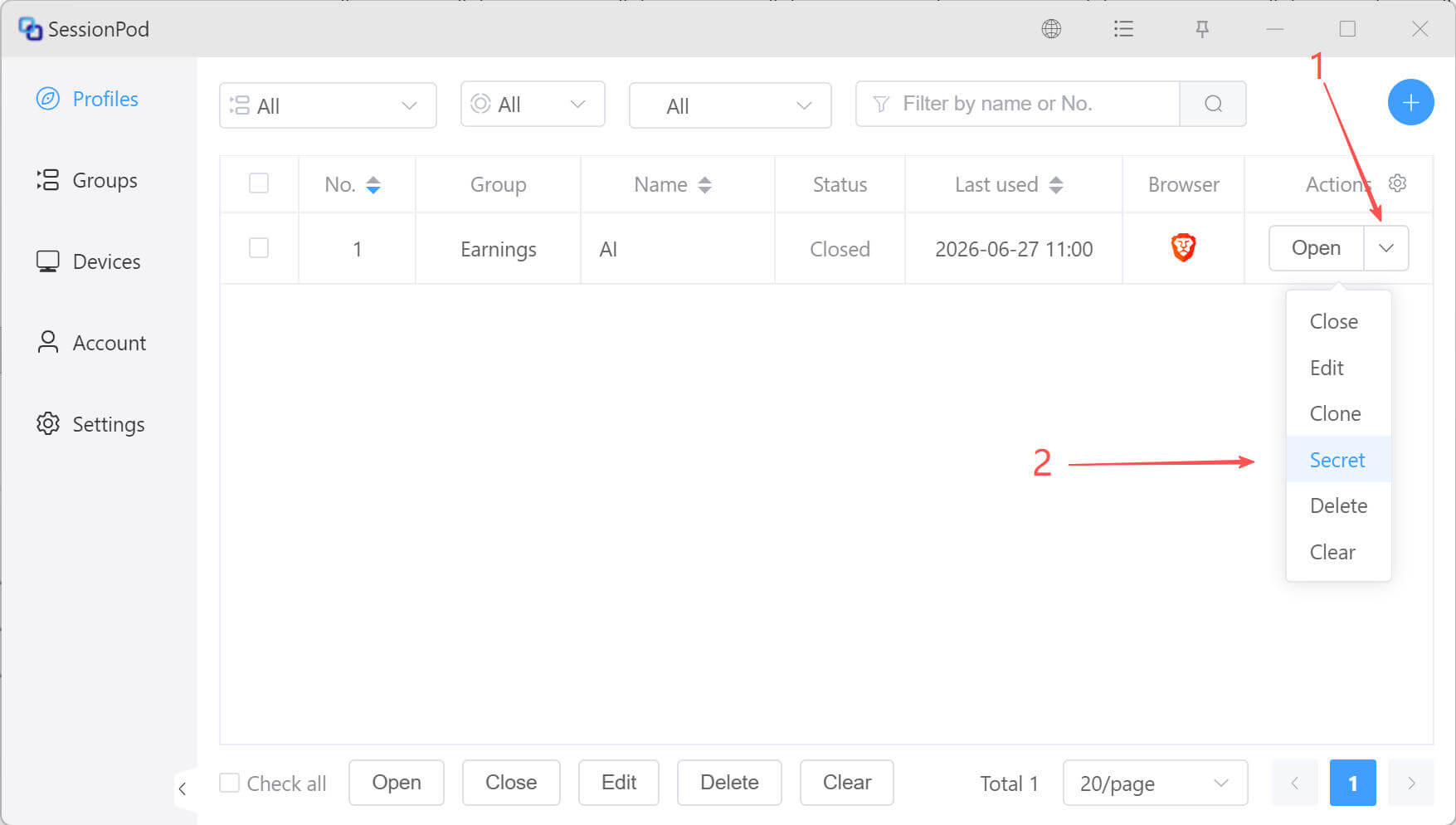
Open the encrypted information settings page
As shown below:
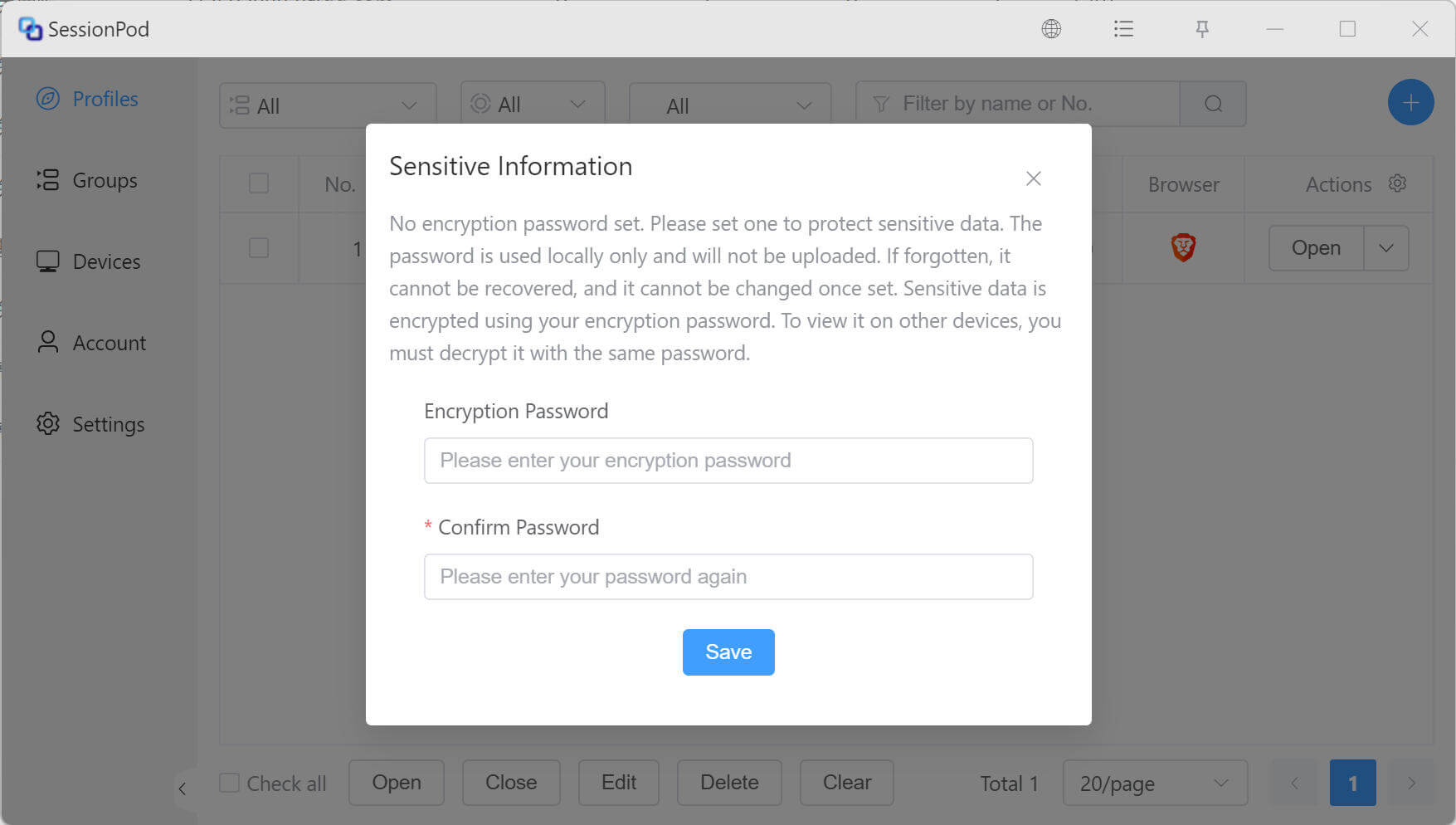
Set a security password
In the security password dialog, enter the password you want to set, confirm it, then click Save, as shown below:
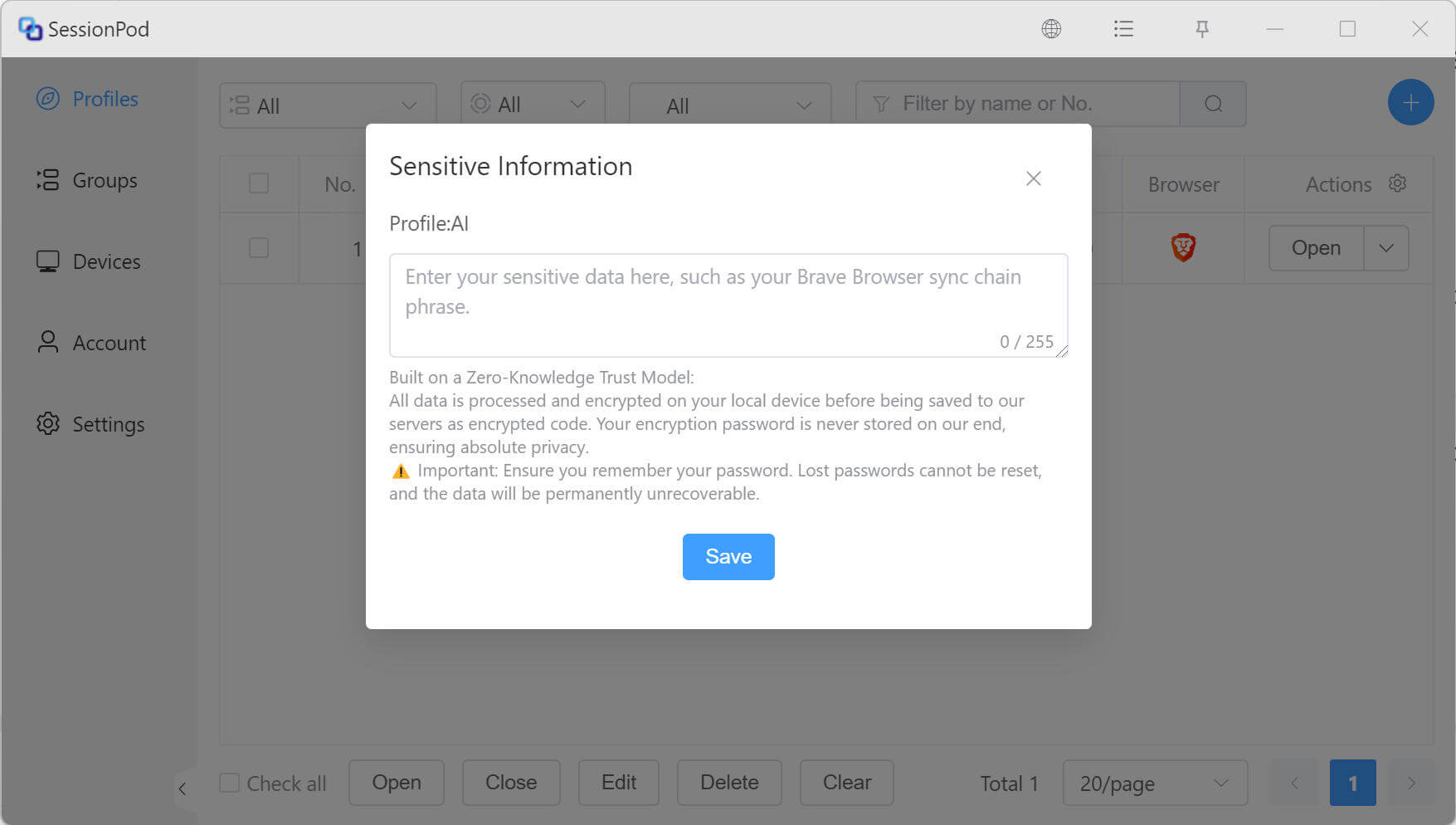
Add sensitive information for encrypted storage
After setting the security password, you can add sensitive information that needs encrypted storage on the encrypted information settings page, such as sync chain codes, account passwords, and more.
When viewing previously saved information on another computer, you need to enter the security password the first time. The information can be decrypted and viewed only after the password is verified.